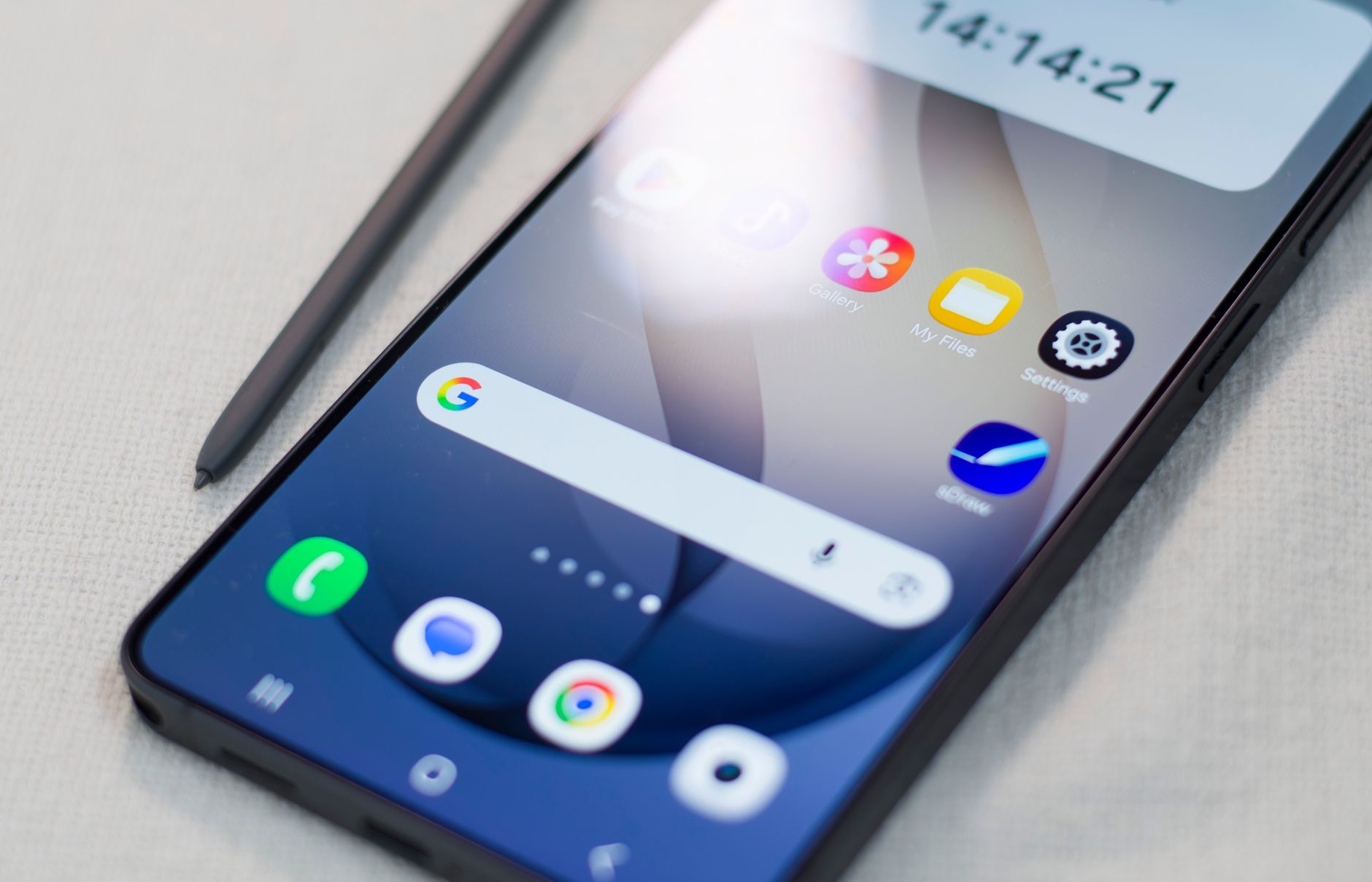
Create My Widget can transform your Pixel home screen into a personalized experience. This feature allows users to customize their device, making it more functional and visually appealing.
What is Create My Widget?
Create My Widget is an innovative feature designed specifically for Google Pixel users, allowing them to personalize their home screens in a unique and dynamic way. By using this tool, individuals can craft custom widgets that reflect their style and preferences, enhancing the overall aesthetic and functionality of their devices.
This feature stands out due to its user-friendly interface, which guides users through the widget creation process. With a few simple taps, you can choose from various sizes, colors, and styles to create a widget that not only looks good but also serves useful purposes, such as displaying weather updates, calendar events, or quick access to apps.
One of the significant advantages of Create My Widget is its flexibility. Users can:
- Customize Layouts: Adjust the size and position of widgets to fit their individual home screen arrangements.
- Select Themes: Choose from a variety of color schemes and designs that complement the device’s background.
- Incorporate Functionality: Add specific features like shortcuts to frequently used applications or essential information at a glance.
Ultimately, Create My Widget empowers users to express their creativity and improve their daily interactions with their Pixel devices, making it an essential tool for personalization.
How to Use Create My Widget
Using Create My Widget is a straightforward process that allows you to customize your Pixel home screen in a few simple steps. Follow these instructions to get started:
- Access the Widget Menu: Long-press on an empty space on your home screen. This will bring up the widget menu, where you can see various options available for customization.
- Select Create My Widget: Scroll through the widgets until you find the option labeled “Create My Widget.” Tap on it to begin the customization process.
- Choose Your Layout: The tool offers several layouts to choose from. Select one that fits your style and the information you want to display. Options may include weather, calendar events, or shortcuts to your favorite apps.
- Customize Appearance: Once you’ve chosen a layout, you can modify the colors, fonts, and sizes to match your personal aesthetic. Experiment with different combinations until you find the perfect look.
- Save and Place: After finalizing your design, save it and drag the widget to your desired location on the home screen. You can resize or reposition it as needed.
With Create My Widget, transforming your Pixel home screen is easier than ever, allowing for greater personalization and functionality.
Benefits of Customizing Your Home Screen
Customizing your home screen offers numerous advantages that can significantly enhance your device experience. With tools like Create My Widget, users can tailor their Pixel home screens to reflect their personal style and preferences.
Here are some key benefits of customizing your home screen:
- Personalization: One of the most compelling reasons to use Create My Widget is the ability to personalize your interface. You can choose colors, layouts, and widgets that resonate with your aesthetic, making your home screen uniquely yours.
- Efficiency: Customizing your home screen can improve your productivity. By strategically placing essential apps and widgets, you can streamline your daily tasks and access information more quickly.
- Enhanced Functionality: With Create My Widget, you can add functionalities that suit your lifestyle. Whether you want quick access to weather updates, news, or calendar events, customization allows you to create a hub of information.
- Visual Appeal: A well-designed home screen not only serves a functional purpose but also enhances the visual appeal of your device. This can make using your Pixel more enjoyable.
In conclusion, the benefits of customizing your home screen with tools like Create My Widget are vast, making it an essential step for any Pixel user looking to optimize their device.
Tips for Maximizing Your Pixel Experience
To truly maximize your Pixel experience, follow these essential tips for using the Create My Widget feature effectively. Personalizing your home screen can enhance both functionality and aesthetics, making it a more enjoyable space.
- Choose the Right Widgets: Experiment with various widgets available through Create My Widget. Decide which ones provide the most value for your daily tasks, such as weather updates, calendar events, or quick access to your favorite apps.
- Customize Sizes and Layouts: Take advantage of the sizing options. A well-organized layout can help you easily access information without cluttering your screen. Play around with different arrangements until you find one that suits your style.
- Use Themes: Consider using cohesive color schemes and themes to create a unified look. This can make your home screen visually appealing and more enjoyable to interact with.
- Regular Updates: Keep your widgets updated to reflect any changes in your routine or preferences. This ensures you’re always getting the most relevant information at a glance.
- Explore Third-Party Options: Don’t hesitate to explore third-party widgets that can complement the Create My Widget feature, adding even more functionality to your Pixel device.
Photo by Dr Failov on Pexels
Sources
Related reading
Instagram messaging app: Best Simple Tool for Users · Vi TRAI Prepaid Recharge Plans: What Are the Best Options? · HMD 2320 Flip 4G: Is It the Best Upgrade for Enterprises?